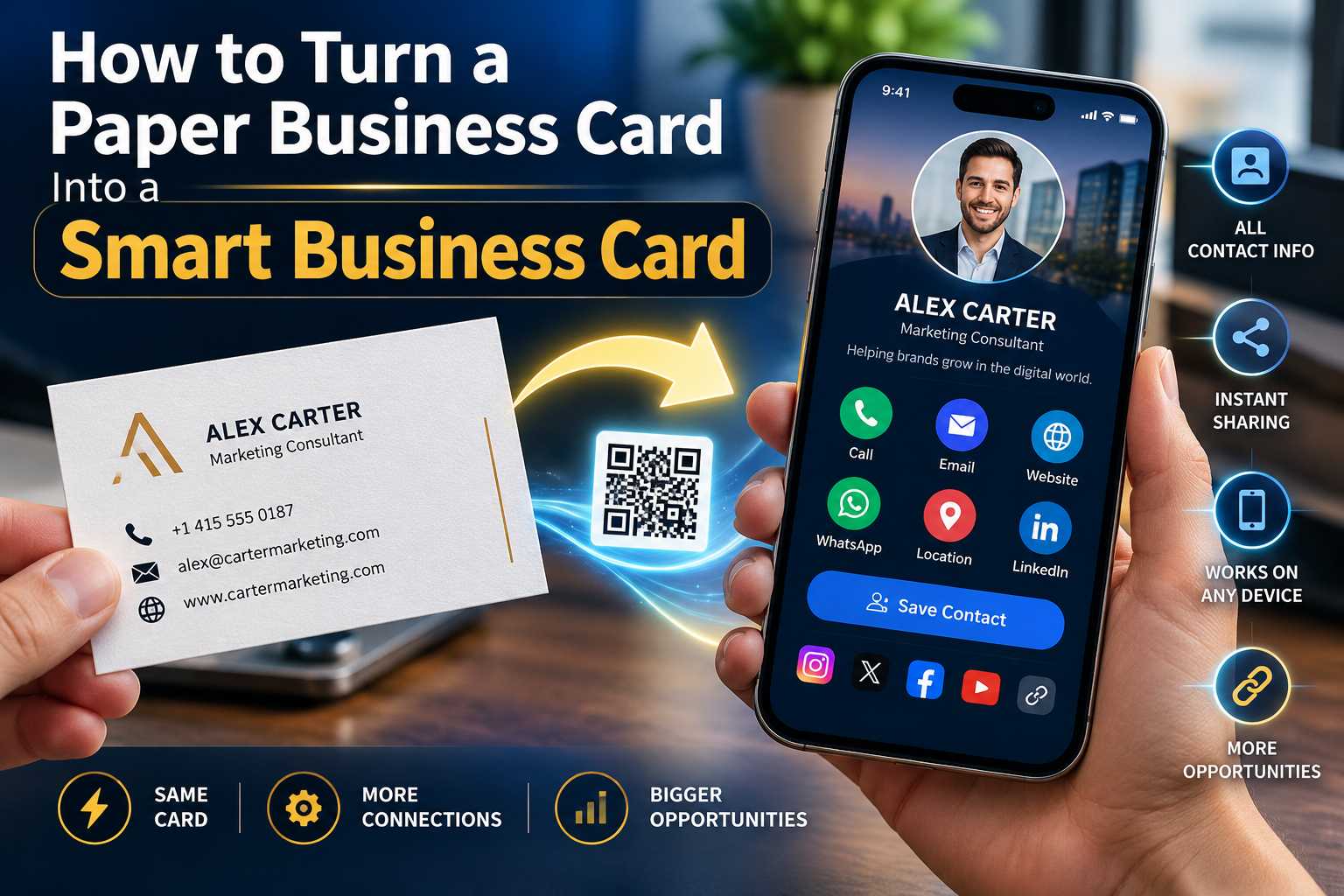
A traditional paper business card can share your name, phone number and basic contact information, but a smart business card can do much more. By adding a QR code that connects to a digital business profile, you can turn an ordinary visiting card into an interactive tool that gives customers instant access to your WhatsApp, website, social media, location, portfolio, products and other important business details.
You do not necessarily need to throw away your existing paper cards. In many cases, adding a properly placed QR code can connect your printed card with a digital business card. When someone scans it, they can access updated contact information and choose how they want to connect with you. This guide explains how to convert a traditional business card into a smart business card, what details to include, where to place the QR code and how small businesses and professionals can use smart cards effectively.
How to Turn a Paper Business Card Into a Smart Business Card
A paper business card is a simple and familiar networking tool. It normally contains your name, business name, designation, phone number, email address and website. However, once the card is printed, the information is fixed and customers still need to manually enter most of those details into their phones.
A smart business card combines the physical convenience of a traditional visiting card with a digital business profile. The printed card contains a QR code or another digital sharing method that allows someone to open your complete contact and business information from their smartphone.
After scanning, the user may be able to call you, start a WhatsApp conversation, visit your website, view your Instagram profile, open Google Maps, browse your services or access your portfolio.
This means a paper card no longer needs to be only a piece of printed contact information. It can become the starting point for a complete digital customer experience.
How Is a Smart Business Card Different From a Paper Card?
The biggest difference is interactivity. Traditional business cards display information, while smart business cards allow customers to take immediate action.
A printed phone number still needs to be entered manually. A smart card can provide a direct call button. A printed Instagram username has to be searched, while a digital card can open the exact profile.
Points
A traditional paper business card usually provides:
Name
Company name
Phone number
Email
Website
Address
A smart business card can additionally provide:
Direct call button
WhatsApp
Website
Instagram
Facebook
LinkedIn
YouTube
Google Maps
Digital contact saving
Portfolio
Product catalogue
Services
Appointment booking
Review links
Multiple business links
You Can Combine Paper and Digital Instead of Choosing One
Turning a paper business card into a smart card does not mean traditional cards are no longer useful. Printed cards are still practical during meetings, exhibitions, store visits and networking events.
The better approach is often to combine both formats. Keep the physical card for face-to-face sharing and add a QR code that gives customers access to your wider digital profile.
This keeps the familiar experience of exchanging a business card while adding the convenience of modern digital communication.
Start With a Digital Business Profile
The first step is creating an online destination for your QR code. Instead of linking only to one phone number or one website, you can create a digital business card that contains the most useful information about you or your business.
This digital profile becomes the smart part of your physical card. When someone scans the QR code, they are taken to that profile.
Your digital card should be designed primarily for smartphones because people will usually open it immediately after scanning.
What Information Should You Add?
Add the details that help customers understand who you are, what you offer and how they can contact you. Avoid filling the profile with links that are inactive or unrelated to your business.
Points
Useful details include:
Your full name
Business or company name
Designation
Business logo
Professional profile image
Mobile number
WhatsApp number
Email address
Official website
Instagram profile
Facebook page
LinkedIn
YouTube
Business location
Google Maps
Products
Services
Portfolio
Customer review page
Appointment booking
Enquiry links
Choose the Most Important Customer Actions
Not every business needs the same information.
A boutique may prioritize WhatsApp, Instagram and Maps. A consultant may prioritize LinkedIn, website, email and appointment booking. A real estate professional may need phone, WhatsApp and property links.
Think about what your customers normally want to do after receiving your card and organize the digital profile around those actions.
Step 1: Create Your Digital Business Card
Start by creating a mobile-friendly digital profile containing your current business information.
Use your correct business name, logo and contact details. Add the communication channels that customers actively use and make sure all links lead to the correct destinations.
The profile should look clean and professional without forcing users to navigate through unnecessary sections.
Step 2: Generate a QR Code for Your Digital Card
Once your digital profile is ready, create a QR code that opens the profile URL.
The QR code will act as the bridge between your traditional paper card and your digital information.
Instead of printing several QR codes for different platforms, one QR code can open your digital business card containing all the important links.
Step 3: Add the QR Code to Your Paper Business Card
Place the QR code in a visible area of the card without interfering with your main business identity.
You can redesign your next batch of business cards and include the QR code directly in the artwork. If you already have printed cards, a professionally printed QR sticker may also be used in some situations, provided it fits the design and remains easy to scan.
The goal is to integrate the QR code cleanly rather than making it look like an afterthought.
Step 4: Add a Clear Call to Action
Do not assume everyone will know what the QR code contains. Add a short instruction near the code.
Points
You can use:
Scan My Digital Card
Scan to Connect
Scan for All My Details
Scan to Save My Contact
Scan to WhatsApp
Scan for Our Business Profile
One Scan. All My Details.
Step 5: Test the Printed Card
Before printing a large quantity, test the final physical card.
Scan the QR code using different smartphones where possible. Make sure the profile loads correctly and every important button works.
Test WhatsApp, phone calls, websites, Maps and other links before approving the final printing.
Use the Right QR Code Size
A QR code must be large enough for smartphone cameras to recognize its pattern. If it is printed too small, scanning can become slow or unreliable.
For a standard business card, a QR code around 20 to 25 mm square can be a practical starting point, but the final size should always be tested because scanability also depends on the QR pattern, print quality and background.
Never reduce the QR code simply to create more space for decorative elements.
Keep Clear Space Around the QR Code
A QR code needs empty space around its edges. This clear margin helps the smartphone identify where the QR code begins and ends.
Avoid placing text, icons, lines or borders directly against the QR code.
A clean area around the code also makes the overall design look more professional.
Use Strong Contrast
The QR code should be clearly visible against its background. A dark code on a light background is generally the safest option.
Avoid placing a QR code directly over complicated photographs, textured graphics or backgrounds with very similar colors.
If your business card uses a visually detailed design, place the QR code inside a simple solid section.
Use High-Quality Artwork
Do not use a blurry screenshot of your QR code. Low-resolution files may lose sharpness during printing and become difficult to scan.
Use a high-quality QR code file and keep its proportions unchanged when resizing it.
Never stretch the code horizontally or vertically.
Give Customers More Than Just Your Phone Number
The biggest advantage of a smart business card is that one scan can provide several customer actions.
Instead of only seeing a phone number, customers can decide how they want to interact with you.
Someone who is ready to enquire can open WhatsApp. Another customer may first visit your website, while someone meeting you professionally may prefer LinkedIn.
Call or WhatsApp Instantly
Direct call and WhatsApp buttons make it easier for customers to contact you without manually saving or typing your number.
This can be especially useful for small businesses that depend heavily on direct enquiries.
Visit Your Website and Social Profiles
Customers who want to learn more can visit your website, Instagram, Facebook, LinkedIn or other relevant platforms.
This helps them move naturally from receiving your business card to exploring your wider online presence.
Open Your Location
If your business has a physical store, office, clinic, hotel, restaurant or showroom, include a Maps link.
Customers can scan your smart business card and open navigation to the correct business location instead of manually searching for the address.
View Products, Services or Portfolio
A smart card can also help potential customers understand what you offer.
Retail businesses can connect customers to product catalogues, while freelancers can provide portfolios and service businesses can display their service information.
This gives your business card a much larger role than simply sharing contact information.
Create a More Professional Networking Experience
A traditional card is useful, but a smart card makes the interaction more complete.
Instead of handing someone a card and hoping they manually save your details later, you can encourage them to scan the card immediately.
This allows the customer or professional contact to interact with your business while the conversation is still fresh.
Reduce Manual Contact Entry
Typing phone numbers, website addresses and social media usernames creates unnecessary effort.
A QR code reduces this friction by allowing people to move directly from the card to your digital profile.
This can also reduce mistakes caused by typing the wrong number or searching for the wrong social media account.
Keep Printed Cards Cleaner
A business may have a phone number, email, website, Instagram, WhatsApp, LinkedIn, Maps and several other digital channels.
Printing all of these details on a small card can make the design crowded.
A smart card allows you to keep only essential information visible while moving additional links to the digital profile.
Make Your Card Useful After the First Meeting
A paper business card may be placed in a wallet or drawer after a meeting. A smart business card gives recipients a reason to interact with it digitally.
The QR code can provide ongoing access to your website, portfolio, social profiles and contact information, making the card more useful beyond the initial exchange.
Use an Editable Digital Profile When Possible
One limitation of traditional paper cards is that printed information cannot easily be changed. If your phone number, designation or website changes, old cards may become outdated.
A smart business card can reduce this problem when the QR code points to an editable online profile.
Where supported by the platform, you can update information inside the digital profile while continuing to use the same profile URL and QR code.
Information You May Need to Update
Points
Over time you may need to change:
Phone number
WhatsApp number
Email
Website
Designation
Business description
Instagram profile
LinkedIn profile
Business address
Google Maps link
Product catalogue
Services
Portfolio
Appointment link
This is one reason a digital business card can be more flexible than linking a QR code directly to one fixed piece of information.
Static QR Code vs Editable Smart Profile
A static QR code can work well when you have one permanent destination such as a website that is unlikely to change.
However, if you want to share several business details and update them over time, linking the QR code to an editable digital business profile can provide greater flexibility.
Always check the capabilities of the platform you choose before printing large quantities of cards.
Customize the Digital Experience for Your Business
A smart business card should reflect the way your customers interact with your business. Different industries can prioritize different actions.
Points
Small Business Owners:
Share phone, WhatsApp, website, Maps, products, services and social media from one profile.
Freelancers:
Connect your portfolio, email, WhatsApp, social profiles and website.
Sales Professionals:
Provide phone, WhatsApp, LinkedIn, company website and contact-saving options.
Consultants:
Share professional information, LinkedIn, appointment booking, website and contact details.
Retail Businesses:
Connect customers to WhatsApp, product catalogues, Instagram, website and store location.
Real Estate Professionals:
Add calls, WhatsApp, property listings, professional profiles and website information.
Photographers and Designers:
Provide portfolio, Instagram, website, enquiry links and contact information.
Restaurant Owners:
Connect menus, Maps, reservations, WhatsApp, reviews and social media.
Service Businesses:
Provide call, WhatsApp, services, service area, website and customer review options.
Avoid Problems That Make Your Card Difficult to Use
A smart business card should make communication easier, not more complicated. Poor QR placement, outdated information or a confusing destination page can reduce its usefulness.
Before printing, review the physical design and digital experience together.
Points
Avoid:
QR codes that are too small
Blurry QR images
Poor contrast
QR codes placed over busy backgrounds
Removing clear space around the QR code
Stretching the QR code
Linking to the wrong profile
Using outdated phone numbers
Adding inactive social accounts
Too many unnecessary links
A slow or confusing mobile page
No call to action
Printing without testing a sample
Test More Than Just the QR Code
Successfully scanning the QR code is only the beginning.
After scanning, test the complete user experience. Confirm that the digital profile loads properly, WhatsApp opens the correct number, phone calls work, Maps displays the correct location and social media links open the correct profiles.
A smart business card should provide a smooth experience from the physical card to the final digital action.
Connect Offline Networking With Your Official Digital Presence
When someone receives a normal business card, they may later search for your company name online. If several businesses have similar names, they may not immediately find the correct website or social profile.
A QR-enabled smart business card can direct them immediately to your official digital profile and important business links.
This creates a clearer connection between your offline business identity and online presence.
AEO-Friendly Business Information
Customers often want simple answers after receiving a business card.
Your digital profile should clearly answer questions such as:
Who is this professional?
What does this business provide?
How can I contact them?
Is WhatsApp available?
What is the official website?
Where is the business located?
How can I view products or services?
How can I book an appointment?
Clear labels and direct information make the profile easier for customers to understand and use.
GEO-Friendly Local Business Information
If you operate from a physical location or serve customers within a specific area, add accurate geographic information to the digital card.
Include your correct business address, city and Maps location when relevant.
Local stores, restaurants, salons, clinics, hotels, offices and service providers can especially benefit from making their location easy to access after scanning.
Avoid adding unrelated city names only for keywords. Geographic information should accurately represent where your business operates.