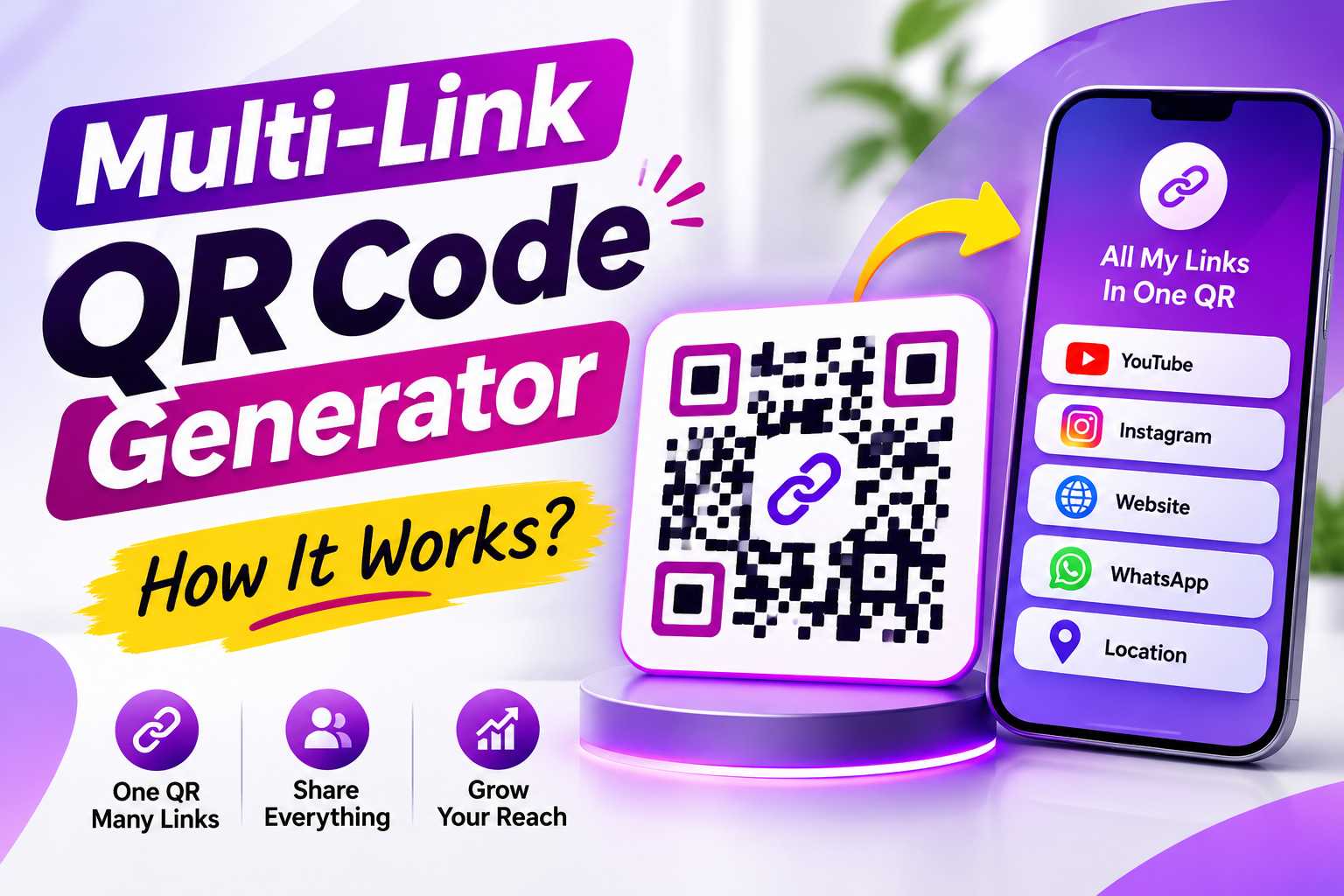
A multi-link QR code generator allows you to connect several important digital destinations to one QR code. Instead of creating separate QR codes for WhatsApp, your website, Instagram, Facebook, Google Maps, product catalogues and other business links, you can organize everything inside one mobile-friendly profile that customers access with a single scan.
This type of QR code is especially useful for small businesses, freelancers, consultants, retailers and professionals who communicate with customers across multiple platforms. One customer may want to send a WhatsApp message, another may visit your website, while someone else may check your location or social media. This guide explains how a multi-link QR code generator works, what links you can add, how to create one and how businesses can use it effectively.
Multi-Link QR Code Generator: How It Works
A multi-link QR code generator is a tool that allows one QR code to connect users with several different links through one central digital page.
A standard QR code often sends the user directly to a single destination, such as a website. A multi-link QR code instead opens a mobile-friendly page containing several buttons or actions.
The customer scans once and then decides which destination they want to open.
For example, a business may use one QR code to provide access to WhatsApp, its website, Instagram, Google Maps, phone number and product catalogue.
This reduces the need to create several separate QR codes and gives customers one simple starting point.
How Is a Multi-Link QR Code Different From a Normal QR Code?
The main difference is the number of destinations available after scanning.
A normal QR code may connect directly to one website, one contact number or one specific page.
A multi-link QR code usually points to a central digital profile where users can select from several options.
Points
A multi-link profile can provide access to:
WhatsApp
Phone number
Email
Website
Instagram
Facebook
LinkedIn
YouTube
Google Maps
Products
Services
Portfolio
Booking
Reviews
Enquiry forms
One Scan Can Open Your Complete Digital Business Presence
Businesses now communicate through several online channels. Customers may discover the brand through Instagram, contact it through WhatsApp, read details on the website and use Maps to visit the physical location.
A multi-link QR code brings these separate channels together.
Instead of explaining each platform individually, businesses can provide one QR code and let customers choose the action that is most useful to them.
The QR Code Opens One Central Digital Page
A multi-link QR code does not normally open several websites simultaneously.
Instead, the QR code points to one digital landing page or business profile. That page contains all the links selected by the business.
When the customer scans the QR code, the smartphone opens the central page. The customer then selects the required button.
For example, a user may tap WhatsApp Us, Visit Website, View Instagram or Get Directions.
Step 1: The Customer Scans the QR Code
The process begins when the user scans the QR code using a smartphone camera or compatible QR scanning function.
The QR code contains the URL of the central business profile.
Once recognized, the phone displays a link that the user can open.
Step 2: The Multi-Link Page Opens
After opening the QR link, the customer reaches a mobile-friendly profile containing different business actions.
The page should clearly show the business name, logo and important links so the customer knows they have reached the correct company.
Step 3: The Customer Chooses an Action
The customer then chooses what they want to do.
One person may tap WhatsApp to make an enquiry, while another may open the website, browse Instagram or view the business location.
This gives customers flexibility without requiring them to scan several different QR codes.
Add the Digital Channels Your Customers Actually Use
A multi-link QR profile can contain many types of business links, but that does not mean every available platform needs to be included.
The strongest profile focuses on the channels customers genuinely use to contact, research or visit the business.
A retail store may prioritize WhatsApp, products, Instagram and Maps, while a consultant may focus on website, LinkedIn, appointment booking and email.
Useful links include:
Phone number
WhatsApp
Email
Official website
Instagram
Facebook
LinkedIn
YouTube
Google Maps
Google review page
Product catalogue
Service pages
Portfolio
Online shop
Appointment booking
Enquiry form
Downloadable brochure
Menu
Payment page
Can WhatsApp, Website and Social Media Be Combined?
Yes. Combining WhatsApp, website and social media links is one of the most useful applications of a multi-link QR profile.
The website can provide detailed information, social media can show recent content and WhatsApp can provide a direct path to an enquiry.
Customers can choose the channel that best matches their current level of interest.
Step 1: Choose a Multi-Link or Digital Business Card Platform
Start by choosing a platform that allows multiple business links to be organized under one mobile-friendly profile.
The platform should support the contact channels your business actually needs.
For some businesses, WhatsApp, website and social media may be enough. Others may need Maps, products, reviews, appointments and enquiry forms.
Step 2: Add Your Business Identity
Add your company name, logo, profile image and short business description.
This information helps customers immediately identify the business after scanning the QR code.
Keep the description clear and focused on what the business provides.
Step 3: Add Your Important Links
Add your contact and business links one by one.
Check each URL before saving it and make sure it leads to the correct official destination.
Arrange the buttons based on customer importance rather than randomly.
Step 4: Generate the QR Code
Once the profile is complete, generate a QR code connected to that profile.
The QR code becomes the single access point for all the links you added.
You can then use the same code across different marketing materials.
Step 5: Test Before Publishing
Scan the QR code and test every important button.
Confirm that WhatsApp opens the correct number, Maps shows the correct location, social media links open the intended accounts and website pages load correctly on a smartphone.
Testing helps prevent broken links and lost customer enquiries.
Replace Several QR Codes With One
Using separate QR codes for every platform can make printed marketing materials look crowded and confusing.
A multi-link QR code reduces visual clutter because customers only need one code.
The profile behind the code organizes all the important links in a cleaner format.
Give Customers More Ways to Connect
Different customers prefer different communication methods.
Some customers prefer phone calls, while others use WhatsApp. Some want to visit a website before making contact, while others prefer Instagram.
A multi-link profile supports these different preferences without forcing everyone to use the same channel.
Keep Business Information Organized
Businesses often share different links in different places. The phone number may appear on a business card, Instagram may be printed on packaging and the website may appear on a brochure.
A central multi-link profile brings these details together and provides a consistent digital destination.
Connect Offline and Online Marketing
A QR code can turn physical marketing into an interactive digital experience.
Someone who receives a visiting card, sees a poster or notices your product packaging can scan the code and immediately continue the interaction online.
This creates a direct connection between offline discovery and digital communication.
Use One QR Code Across Multiple Customer Touchpoints
A multi-link QR code can be used anywhere customers may want more information or a quick way to contact the business.
The QR code should be placed where scanning feels natural and useful.
Common placements include:
Business cards
Visiting cards
Posters
Flyers
Brochures
Shop counters
Reception desks
Product packaging
Product labels
Catalogues
Restaurant tables
Menus
Exhibition stalls
Event banners
Invoices
Service vehicles
Appointment cards
Thank-you cards
Printed advertisements
Multi-Link QR Codes on Business Cards
Business cards have limited space, making them ideal for a multi-link QR code.
Instead of printing long URLs and several social usernames, the card can include basic contact details and one QR code.
After scanning, the user can access the complete digital business profile.
Multi-Link QR Codes on Posters and Brochures
Marketing posters and brochures can use a multi-link QR code as a clear digital call to action.
A customer may scan the poster and then decide whether to visit the website, WhatsApp the business, browse products or check the location.
This provides more flexibility than connecting the campaign to only one destination.
Put High-Intent Customer Actions First
The order of links can influence what customers do after scanning.
The most valuable customer actions should normally appear close to the top.
For a service business, this may be WhatsApp or Get a Quote. For a physical store, the priority may be phone, WhatsApp and Maps.
Use Clear Button Labels
Buttons should explain exactly what will happen after the customer taps them.
Avoid vague labels such as Click Here or Learn More when a more specific action is available.
Better button labels include:
WhatsApp Us
Call Now
Visit Website
View Products
Get Directions
Book Appointment
View Portfolio
Leave a Review
Send Enquiry
Avoid Too Many Unnecessary Links
A profile with too many buttons can become difficult to use.
Remove inactive social accounts and links that provide little value to customers.
The goal is to make the customer's next step easier, not create another complicated navigation page
Different Businesses Can Build Different Link Profiles
The best multi-link QR setup depends on the business type and customer journey.
A local business should choose the contact points that customers are most likely to use.
Retail Stores:
Add WhatsApp, phone, product catalogue, Instagram, website, Maps and reviews.
Restaurants and Cafes:
Add menus, reservations, Maps, reviews, Instagram and WhatsApp.
Salons:
Add appointment booking, WhatsApp, services, Instagram and business location.
Hotels and Homestays:
Add website, booking enquiry, phone, WhatsApp, Maps and reviews.
Freelancers:
Add portfolio, website, email, LinkedIn and WhatsApp.
Consultants:
Add appointment booking, website, LinkedIn, email and professional information.
Real Estate Professionals:
Add property listings, phone, WhatsApp, website and contact information.
Photographers and Designers:
Add portfolios, Instagram, website, email and enquiry links.
Local Service Businesses:
Add phone, WhatsApp, service details, Maps and customer reviews.
A Multi-Link Page Can Be Used With Different QR Setups
A QR code can point directly to a multi-link profile URL, or a dynamic QR service can redirect users to that profile.
The important difference is whether the QR destination itself can be updated after printing.
Static QR Code With a Multi-Link Page
A static QR code can point directly to a permanent multi-link profile URL.
If the profile URL stays the same and the links inside the page can be edited, the business may continue using the same QR code even when individual profile details change.
Dynamic QR Code With a Multi-Link Page
A dynamic QR code usually provides another management layer by allowing the destination URL itself to be changed through a QR platform.
Dynamic services may also provide analytics or campaign-management features.
The right setup depends on how much editing and tracking the business requires.
Turn QR Scans Into Customer Actions
A multi-link QR profile can support lead generation when it gives strong visibility to contact-focused actions.
Instead of only offering informational links, businesses can include WhatsApp, calls, enquiry forms, quote requests or appointment booking.
Customers with different levels of interest can choose the next step that suits them.
Keep Conversion Actions Near the Top
If your main goal is generating enquiries, do not hide the contact options below several social media links.
Place high-intent actions prominently.
Useful lead actions include:
WhatsApp
Call Now
Get a Quote
Book Appointment
Request Callback
Send Enquiry
Request Demo
Allow Research Before Contact
Some customers may not be ready to enquire immediately.
Providing website, portfolio, products, social media and reviews gives these users more information before they decide to contact the business.
This allows one multi-link profile to support both customer research and direct lead generation.
Make the QR Code Easy to Scan
The physical QR code needs to remain clear and readable.
Use a sharp QR image, sufficient contrast and enough empty space around the pattern.
Avoid placing it directly over complex images or textured backgrounds.
Make the Destination Mobile Friendly
Most customers will open the multi-link profile from a smartphone.
Buttons should be easy to tap, text should be readable and the page should load without unnecessary delay.
A poor mobile experience can reduce the usefulness of the QR code.
Keep All Business Information Current
Check your profile periodically and remove outdated URLs.
Phone numbers, social media usernames, website pages, business locations and booking links can change over time.
Maintaining accurate information helps customers reach the correct destination.
Add a Clear Call to Action Near the QR Code
Customers should understand why they should scan.
Useful messages include Scan for All Our Links, Scan to Connect With Us or Scan Our Digital Business Card.
The call to action should match what users will find after scanning.