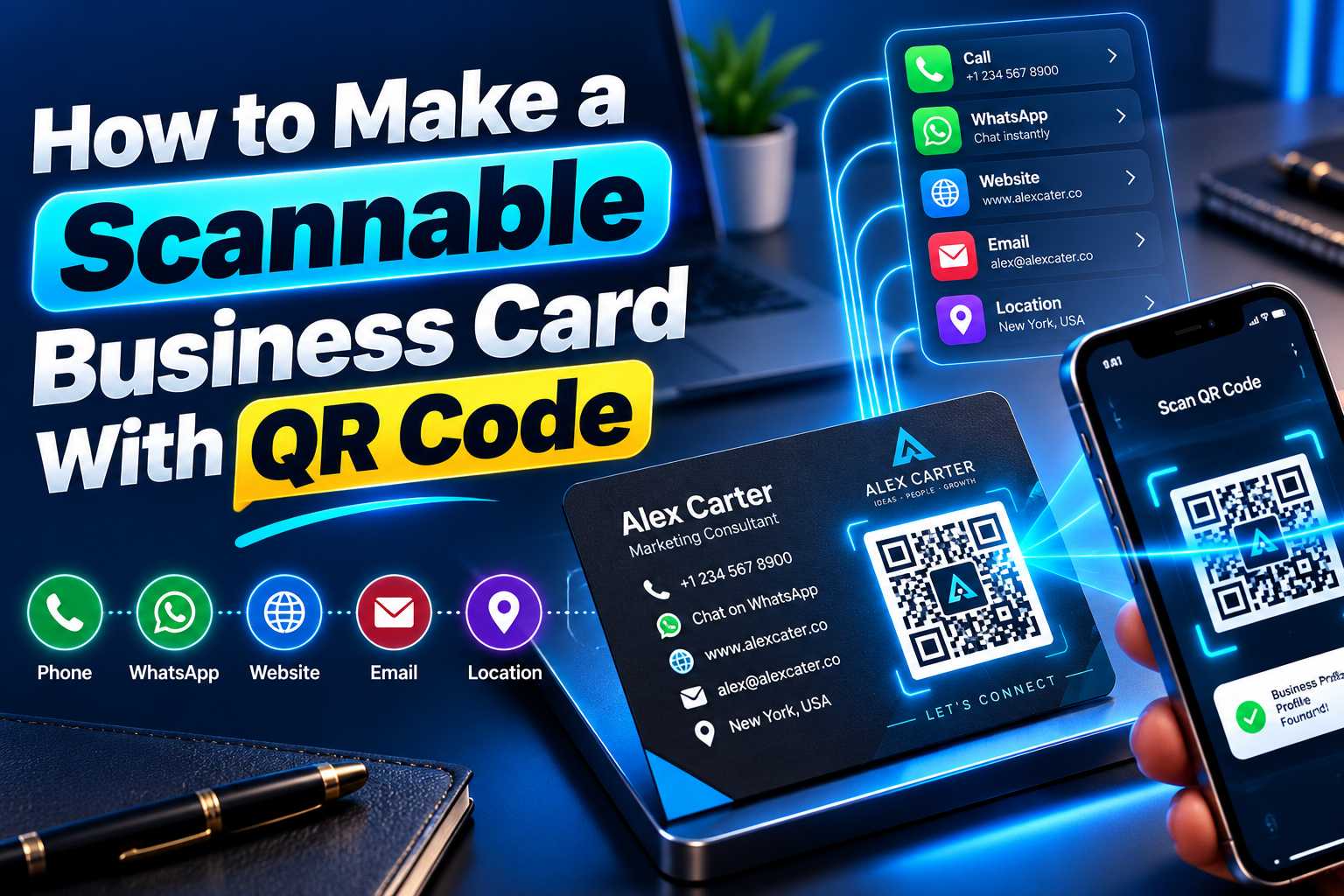
A scannable business card with a QR code makes it easier for customers, clients and professional contacts to access your digital information without manually typing phone numbers, websites or social media usernames. By adding a properly designed QR code to a printed business card, you can connect people directly to your digital business card, WhatsApp, website, contact details, portfolio, Google Maps location or multiple business links from one simple scan.
Creating a reliable QR code business card requires more than placing a code anywhere on the design. The QR code needs the right size, contrast, clear spacing and destination page to scan properly across different smartphones. This guide explains how to create a scannable business card with a QR code, where to place it, what information to link, how to test it and how businesses can use it effectively for networking and customer communication.
How to Make a Scannable Business Card With QR Code
A scannable business card is a printed visiting card containing a QR code that can be read by a smartphone camera. Instead of limiting the card to printed information, the QR code connects the physical card to a digital destination.
After scanning, a user may be able to call you, send a WhatsApp message, visit your website, open your digital business card, view your portfolio, check your business location or access your social media profiles.
This makes a QR code business card useful for professionals and businesses that want to combine traditional networking with digital communication.
A standard printed card has limited physical space. Adding every phone number, social profile, website URL and location can make the layout crowded. A QR code provides a cleaner alternative by keeping the physical design simple while providing access to additional information online.
Why Is Scanability Important?
Adding a QR code does not automatically mean it will work well. The code must be clear enough for smartphone cameras to recognize its pattern.
If the QR code is too small, blurry, heavily customized or placed on a low-contrast background, customers may struggle to scan it.
A successful QR business card should therefore focus on two things: an attractive design and reliable scanning.
Points
A scannable QR code should have:
Clear contrast
Sharp image quality
Sufficient size
Empty space around the code
A working destination URL
Mobile-friendly landing page
Proper placement
No overlapping design elements
Clear call-to-action text
A QR Code Turns a Printed Card Into a Digital Connection Point
A normal visiting card provides information that the recipient must manually use. For example, the person may need to type the website URL into a browser or save a phone number manually.
A QR-enabled business card simplifies these actions. The user scans once and immediately reaches the selected destination.
This creates a smoother connection between physical networking and digital interaction.
Choose the Right Destination Before Creating Your QR Code
Before designing the business card, decide what should happen after someone scans the QR code. The destination should support the most important action you want the recipient to take.
Some professionals may want customers to visit a portfolio, while local businesses may prefer WhatsApp or Google Maps. Businesses with several online channels may benefit more from a digital business card containing multiple links.
Digital Business Card
A digital business card is one of the most practical QR code destinations because one profile can contain several business details and customer actions.
Instead of forcing the user to visit only one website or social media page, you can allow them to choose the platform they need.
Points
A digital business card can include:
Name
Company name
Designation
Profile photograph
Business logo
Phone number
WhatsApp
Email
Website
Instagram
Facebook
LinkedIn
YouTube
Google Maps
Business address
Product catalogue
Services
Portfolio
Review links
Appointment booking
WhatsApp
If your business handles most customer enquiries through WhatsApp, the QR code can connect directly to your WhatsApp contact or to a digital profile containing a WhatsApp button.
This is useful for businesses where customers frequently ask about availability, prices, bookings or service details.
Website
Businesses with a strong website can direct the QR code to their homepage, contact page, product page or a dedicated mobile landing page.
The destination should load correctly on smartphones because almost all users scanning a business card QR code will be using a mobile device.
One Profile With Multiple Business Links
For many businesses, a multi-link profile is more useful than sending customers to a single destination.
One QR code can open a profile where customers can select WhatsApp, website, Instagram, Maps, phone, email and other options.
This gives customers more flexibility and prevents the need for several separate QR codes.
Step 1: Prepare Your Business Details
Start by collecting all the information you want customers to access. Make sure every phone number, email address, social media URL and website link is correct.
Incorrect information can lead to missed enquiries, so verify all details before generating the QR code.
Points
Prepare information such as:
Full name
Company name
Designation
Mobile number
WhatsApp number
Email
Website
Social media URLs
Maps location
Business address
Portfolio
Product or service pages
Step 2: Create the Digital Destination
If you are using a digital business card or multi-link page, create the profile before generating the QR code.
Organize the profile so the most important customer actions appear first. For example, if WhatsApp is your main communication channel, place it near the top.
Make sure the digital page looks professional and works properly on mobile devices.
Step 3: Generate the QR Code
Once the destination is ready, generate a QR code linked to it.
Use a reliable QR generation method that produces a sharp, high-quality image. Avoid relying on screenshots because they may lose clarity when placed into print designs.
Step 4: Download a High-Quality File
Use a high-quality QR code file suitable for printing. The pattern should remain sharp even after resizing.
When possible, use a format that preserves clean edges so the code does not become blurry in the final printed business card.
Step 5: Add the QR Code to Your Business Card Design
Place the QR code where it is clearly visible without interfering with important design elements such as your name, business logo and phone number.
Leave enough clear space around the code and avoid placing it directly against text or decorative graphics.
Step 6: Print and Test a Sample
Before printing a large quantity, print one or more sample cards at the exact final size.
Scan the code from the physical card using different smartphones where possible. Make sure it works in normal lighting and from a comfortable scanning distance.
This step can prevent costly printing mistakes.
Use a QR Code Large Enough to Scan Reliably
QR code size is one of the most important factors affecting scanability. If the code is too small, the individual modules inside the pattern may become difficult for the smartphone camera to recognize.
For many standard-sized business cards, a practical starting point is around 20 to 25 mm square, although the ideal size depends on the complexity of the QR code, print quality and destination data.
The final design should always be physically tested rather than relying only on measurements.
Where Should You Place the QR Code?
The QR code should be positioned where it is easy to see and scan. Many designers place it on the back of the card because this provides more room without interfering with the main branding.
Points
Good placement options include:
Center of the back side
Lower-right corner
Lower-left corner
Right side of a landscape card
Dedicated QR section
Beside a short call to action
Under the main contact details
Keep Enough Space Around the QR Code
QR codes require clear space around their outer edge. This margin helps smartphone cameras distinguish the QR pattern from nearby design elements.
Avoid placing phone numbers, borders, icons or graphics immediately against the code.
A clean white or plain area around the QR code generally improves scanning performance.
Use Strong Contrast Between the Code and Background
QR codes work best when there is a clear visual difference between the code itself and its background.
A dark QR code on a light background is generally the safest option.
Avoid using similar shades for both the code and background because the smartphone camera may have difficulty distinguishing the pattern.
Avoid Busy Background Images
Placing a QR code directly over photographs, patterns or textured backgrounds can reduce its readability.
If your business card uses a photo or detailed graphic, place the QR code inside a plain section or solid background area.
The QR pattern should always remain visually clear.
Do Not Distort the QR Code
Never stretch the QR code horizontally or vertically to make it fit the design.
The QR code should maintain its original square proportions.
Distortion can change the pattern and make scanning unreliable.
Use High-Resolution Artwork
A low-resolution QR code may appear acceptable on a screen but become blurry during printing.
Always inspect the final print file at full size and use a high-quality source image.
Sharp QR edges make it easier for smartphone cameras to identify the pattern.
Avoid Excessive Customization
Some QR code generators allow businesses to add logos, custom shapes and different colors.
Moderate customization can improve branding, but excessive design changes can reduce scan reliability.
Whenever the QR code is customized, test it repeatedly on multiple devices before approving the final design.
Keep the Card Clean and Easy to Understand
A professional business card should immediately communicate who you are and what business you represent.
Do not remove every traditional contact detail simply because you have added a QR code. Your name, business name and at least one important contact method should remain visible.
The QR code should provide additional convenience rather than making the card impossible to use without a smartphone.
Use the Front and Back Strategically
A simple approach is to keep your logo, name, designation and important contact details on the front.
The back can then contain the QR code, a short instruction and possibly your website or brand tagline.
This keeps the design balanced while giving the QR code enough space.
Add a Clear Call to Action
A customer is more likely to scan the code when they understand what it contains.
Add a short line beside the QR code explaining its purpose.
Points
Useful examples include:
Scan My Digital Business Card
Scan to Connect
Scan to Save My Contact
Scan for All Business Details
Scan to WhatsApp Me
Scan to View Our Website
Scan to View My Profile
One Scan. All My Details.
Match the QR Code With Your Branding
The surrounding business card design should match your brand colors, typography and visual identity.
The QR code itself should remain highly readable, but the rest of the card can use your brand style to create a consistent professional appearance.
What Is a Static QR Code?
A static QR code contains fixed information or points directly to a permanent destination.
For example, a QR code may contain your website URL. If the URL remains the same, the QR code can continue working without changes.
However, if the destination changes, you may need to create and print a new QR code.
What Is a Dynamic or Editable QR Profile?
A dynamic or profile-based QR setup usually points to an online page that can be managed separately.
If the platform supports editing, businesses can update the information inside the digital profile while keeping the QR code destination unchanged.
This can be helpful when phone numbers, social media accounts, services or other details change.
Which Is Better for a Business Card?
A static QR code can work well when you only need to share one permanent website.
A digital business card or editable multi-link profile can be more practical if you want to provide multiple business details or expect your information to change over time.
This flexibility can help reduce the need to reprint cards every time one contact detail changes.
Choose Your QR Code Destination Based on Your Industry
Different businesses can use QR-enabled business cards in different ways. The destination should reflect the actions customers or professional contacts are most likely to take.
Points
Small Business Owners:
Share phone, WhatsApp, website, Maps, services and social media in one digital profile.
Freelancers:
Connect users to a portfolio, email, website, WhatsApp and social profiles.
Sales Professionals:
Provide contact saving, phone, WhatsApp, LinkedIn and company website access.
Consultants:
Share professional information, appointment booking, LinkedIn and contact details.
Real Estate Professionals:
Link to WhatsApp, phone, property listings and professional profiles.
Photographers and Designers:
Connect users to portfolios, Instagram, websites and enquiry information.
Retail Businesses:
Provide WhatsApp, store location, website, catalogue and Instagram.
Restaurant Owners:
Share menus, Maps, reservations, reviews and social media.
Service Businesses:
Offer call, WhatsApp, website, service details and customer reviews.
Avoid QR Code Design and Printing Problems
A QR code may look visually attractive while still being difficult to scan. Many problems happen because the design is finalized without testing the physical card.
Businesses should evaluate the code based on usability rather than appearance alone.
Points
Avoid these common mistakes:
Making the QR code too small
Using a blurry QR image
Stretching or distorting the code
Removing the clear margin
Using weak color contrast
Placing the code over a photograph
Printing too close to the card edge
Using an incorrect website URL
Linking to an outdated phone number
Adding excessive visual customization
Forgetting to test the printed card
Using a desktop-only landing page
Providing no explanation beside the QR code
Do Not Test Only From Your Computer Screen
A large QR code displayed on a monitor may scan easily even if the final printed version does not.
Always test the physical card at its actual size.
This is particularly important when the business card uses a small QR code or a highly customized design.
Connect Offline Customers With Accurate Digital Information
A QR code business card can direct customers to the correct digital destination instead of requiring them to search for your company manually.
This can reduce confusion when similar business names appear online and allows customers to access your official website, contact details and digital business profile directly.
Your destination page should contain accurate and consistent business information.
AEO-Friendly Contact Information
Customers often want quick answers after receiving a business card.
A digital profile can clearly answer questions such as:
What does this business provide?
How can I call this business?
Is WhatsApp available?
What is the official website?
Where is the business located?
How can I view products or services?
How can I book an appointment?
Using clear labels and simple information makes the profile easier to understand.
GEO-Friendly Business Information
If your business serves customers from a particular location, include accurate geographic information such as the business address, service area and Maps link.
For example, a local shop should show its correct physical address so customers can understand where the business operates and navigate there easily.
Avoid adding unrelated location keywords. Geographic information should accurately represent your real business presence.
Check Everything Before Ordering Your Cards
Before sending the final business card artwork to the printer, perform a complete check of both the design and QR functionality.
A few minutes of testing can prevent hundreds of unusable cards from being printed.
Points
Confirm that:
The QR code scans quickly
The destination opens correctly
The QR image is sharp
The code is large enough
There is clear space around it
Contrast is strong
Phone number is correct
WhatsApp opens correctly
Website works
Social links are active
Business location is accurate
The destination is mobile friendly
The call to action is visible
The card works on different phones
The physical print sample scans properly
Test the Full Customer Experience
Do not stop after confirming that the QR code opens.
Follow the complete customer journey. Scan the card, open WhatsApp, test the phone number, visit the website, check Maps and review other important links.
The entire experience should be simple from scan to final action.