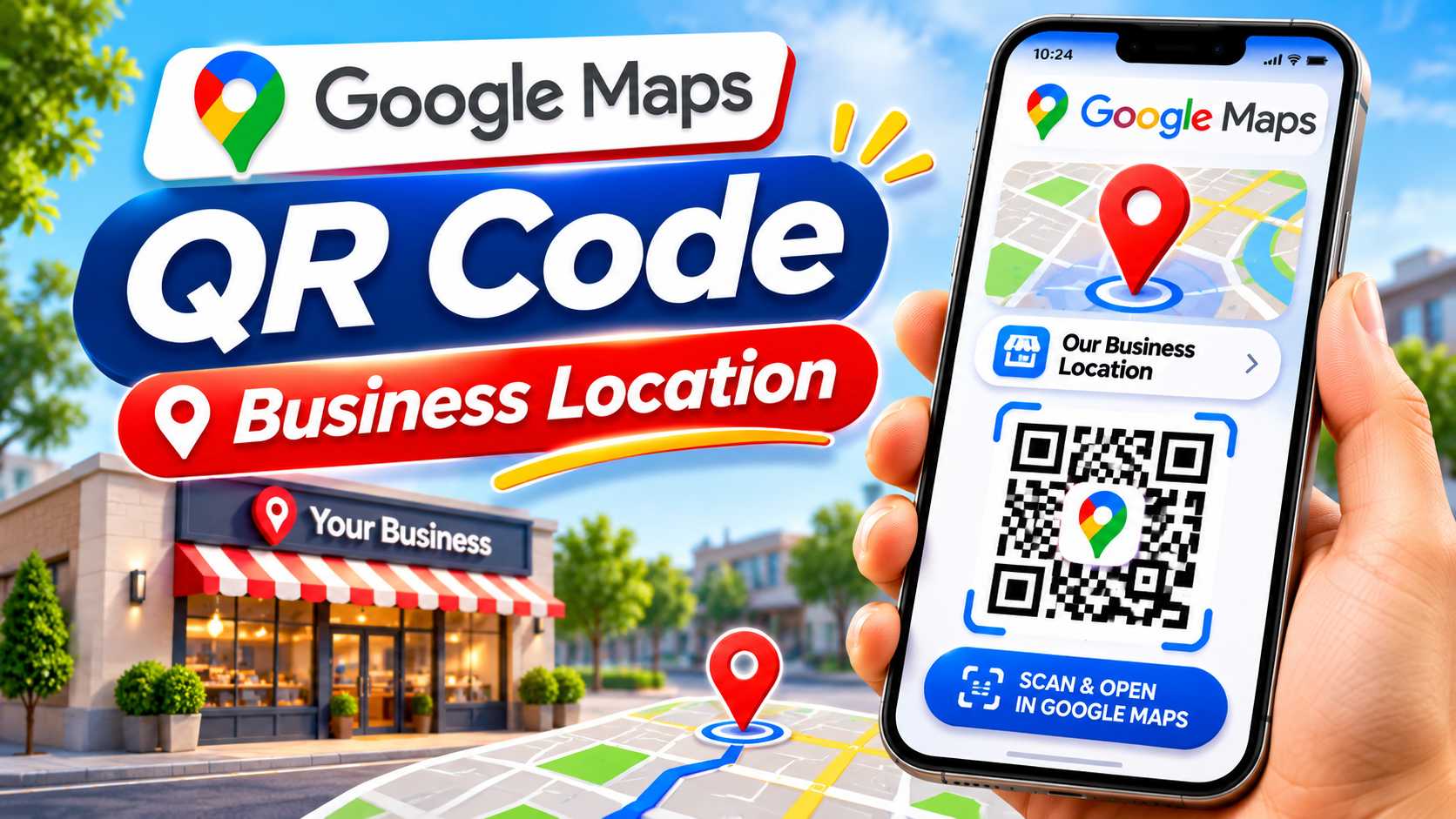
A Google Maps QR code makes it easier for customers to find your business location without manually searching for your address. By scanning one QR code with their smartphone, customers can open your business location in Google Maps, view directions and start navigating to your shop, office, restaurant, clinic or service centre.
Businesses can place a Google Maps QR code on visiting cards, posters, brochures, product packaging, invitations, store displays and digital business profiles. It provides a simple way to connect offline customers with your physical location and can reduce confusion caused by manually typed addresses or difficult-to-find landmarks.
How to Create a Google Maps QR Code for Your Business Location
Customers should not have to search through long addresses, landmarks or directions every time they want to visit your business. A Google Maps QR code provides a much easier way to guide customers directly to your location.
Instead of printing only your street address, you can provide a QR code connected to your Google Maps location. When someone scans the code using a smartphone camera, they can open the map location and use navigation to reach your business.
This is especially useful for restaurants, cafés, retail stores, clinics, offices, hotels, salons, showrooms, real estate offices, educational institutions and service businesses that regularly receive visitors.
A Google Maps QR code can also be included in your digital business card. This allows customers to access your phone number, WhatsApp, website, social media profiles and business location from one digital profile.
What Is a Google Maps QR Code?
A Google Maps QR code is a scannable code that connects users to a specific location or business listing on Google Maps. Instead of manually entering an address into a navigation app, customers can scan the QR code and access the location directly.
The QR code itself acts as a shortcut between printed or digital marketing materials and your online map location.
For example, a customer may see your advertisement on a brochure. Instead of searching your business name on Google, they can scan the QR code, open your location and begin navigation immediately.
Why Location QR Codes Are Useful for Businesses
Location QR codes reduce unnecessary steps between customers discovering your business and physically visiting it. This can be particularly useful when the address is difficult to type, the business is located inside a commercial complex or customers are unfamiliar with the surrounding area.
By making directions easier to access, businesses can provide a smoother customer experience before the customer even arrives.
Step-by-Step Process to Create a Google Maps QR Code
Creating a QR code for a business location begins with obtaining the correct Google Maps link. It is important to verify that the location link points to the correct business or destination before generating the QR code.
Once you have the correct map link, it can be converted into a QR code that customers can scan using their smartphone.
- Open Google Maps on your mobile phone or computer.
- Search for your exact business name or address.
- Confirm that the location marker is correct.
- Open the business location details.
- Select the option to share the location.
- Copy the Google Maps location link.
- Add the location link to your QR code or digital business card platform.
- Generate the QR code.
- Scan the QR code using different smartphones.
- Confirm that the correct Google Maps location opens.
- Download or use the QR code for your marketing materials.
Always Verify the Business Location Before Generating the QR Code
Before creating the final QR code, make sure your Google Maps location is accurate. An incorrect map marker can lead customers to the wrong building, street or area.
Check your business name, road name, landmark and location pin before publishing the QR code. If your business operates from a large building, shopping complex or commercial area, you can also provide additional instructions on your digital profile.
A QR code should make navigation easier, so location accuracy is one of the most important parts of the setup process.
Best Places to Display Your Business Location QR Code
Once you create a Google Maps QR code, you can use the same location code across multiple offline and digital marketing materials. This gives customers an easy way to access directions whenever they see your business information.
The QR code should be placed where customers are likely to need location information. A clear instruction such as “Scan for Directions” or “Scan to Find Us” can help users immediately understand what the code does.
You can place your Google Maps QR code on:
- Business cards
- Digital business cards
- Flyers
- Brochures
- Posters
- Event invitations
- Product packaging
- Shop advertisements
- Restaurant menus
- Hotel brochures
- Clinic appointment cards
- Real estate advertisements
- Office reception displays
- Exhibition banners
- Vehicle advertisements
- Social media graphics
- Email signatures
- Digital catalogues
- Bills and invoices
- Appointment confirmations
Add a Clear Call to Action Near the QR Code
Customers may not know what a QR code contains unless you explain its purpose. Adding a short call to action can increase the chances of people scanning it.
Useful phrases include:
- Scan for Directions
- Scan to Find Us
- Scan to Open Google Maps
- Find Our Location
- Get Directions
- Navigate to Our Store
- Scan to Visit Us
The wording should remain short and clear. Customers should immediately understand that scanning the code will help them locate your business.
Why Businesses Should Use QR Codes for Location Sharing
Sharing a business address through text alone can create problems. Customers may misspell a road name, select a similarly named location or struggle to find the exact building.
A Google Maps QR code simplifies the process by giving customers direct access to the location from their phone.
For businesses that depend on physical visitors, making navigation easier can improve the experience between online discovery and an in-person visit.
Faster Access to Directions
Customers do not need to manually type your business address or copy it from a poster. They can scan the QR code and open the location directly.
This can save time, especially when the business address contains a long street name or several location details.
Reduce Address Typing Errors
Manually entering addresses can lead to spelling mistakes or incorrect location results. A QR code can reduce this problem because the correct Google Maps link is already connected to the code.
Customers only need to scan and verify the destination before starting navigation.
Useful for Customers New to the Area
Visitors who are unfamiliar with your city or neighbourhood may find it difficult to understand directions based only on landmarks.
A map QR code gives them a visual location and can help them use Google Maps navigation from their current location.
This is particularly useful for hotels, restaurants, tourist businesses, hospitals, event venues, educational institutions and offices that frequently receive first-time visitors.
Works With Printed and Digital Marketing
QR codes provide a bridge between offline advertisements and online navigation. A customer may discover your business through a poster, flyer, visiting card or printed catalogue and immediately move from the printed material to Google Maps.
This makes QR codes particularly useful for local marketing campaigns where the main objective is to bring customers to a physical location.
Combine Your Location With Other Business Contact Details
A Google Maps QR code can be useful on its own, but businesses may also want to provide customers with other important actions such as calling, messaging on WhatsApp, visiting the website or following social media profiles.
A digital business card can organize these options on one mobile-friendly page.
Instead of maintaining several separate QR codes for your location, WhatsApp, website and social media profiles, you can use one digital contact profile that contains all the important links.
For businesses using VCRDS, the business profile can become a convenient place to organize contact information and important online destinations.
What You Can Include in Your Digital Business Profile
- Business name
- Logo
- Phone number
- WhatsApp
- Email address
- Website
- Google Maps location
- Instagram
- Facebook
- LinkedIn
- YouTube
- Business hours
- Product catalogue
- Service information
- Appointment links
- Google review links
- Payment links
This gives customers more flexibility. One person may want directions to your store, while another customer may want to contact you through WhatsApp before visiting.
Providing several useful actions from one digital destination makes your business information easier to access.
One QR Code for Location and Contact Information
If you connect your QR code to a digital profile instead of only a Google Maps URL, the customer can first see several business options.
For example, after scanning, they may choose:
- Get Directions
- Call Now
- Chat on WhatsApp
- Visit Website
- Follow on Instagram
- Send Email
- View Business Hours
This type of setup can be useful when the QR code appears on visiting cards, marketing materials, storefront displays or product packaging because the same QR code can support several customer actions.
How to Make Your Google Maps QR Code Easy to Scan
Generating the QR code is only one part of the process. The code also needs to remain easy to scan when printed or displayed digitally.
A poorly positioned or very small QR code may make it difficult for customers to access your location.
Before using the final design, always test the QR code under realistic conditions.
Keep Enough Space Around the QR Code
Avoid placing text, logos or design elements too close to the edges of the QR code. Leaving sufficient clear space around the code helps smartphone cameras detect it more reliably.
The overall design can still match your brand, but readability and scannability should remain the priority.
Use Good Contrast
The QR code should clearly stand out from its background. Avoid backgrounds that make the code difficult to distinguish.
When creating posters, visiting cards or brochures, test the completed design rather than testing only the original QR code.
Do Not Print the QR Code Too Small
A QR code that is too small can become difficult to scan, especially when used on posters or advertisements that customers view from a distance.
The appropriate size depends on where the QR code is displayed. A code on a business card can be smaller than one displayed on a large banner or shop entrance.
Always test from the distance at which customers are expected to scan it.
Test the QR Code Before Printing
Before sending hundreds of brochures, visiting cards or posters for printing, test the QR code using multiple mobile devices.
Confirm that the code opens quickly and that the correct business location appears.
Also check that the destination link has not been copied incorrectly.
Who Can Use a Business Location QR Code?
Almost any organization with a physical location can benefit from a map QR code. It is especially useful when customers frequently ask for directions or when the business receives many first-time visitors.
Google Maps QR codes can be useful for:
- Restaurants and cafés
- Retail stores
- Hotels and resorts
- Hospitals and clinics
- Dental clinics
- Beauty salons
- Fitness centres
- Offices
- Showrooms
- Schools and colleges
- Training institutes
- Event venues
- Wedding halls
- Real estate offices
- Tourist attractions
- Travel agencies
- Service centres
- Automobile showrooms
- Warehouses
- Factories
- Professional offices
Example for a Restaurant or Café
A restaurant can add a “Scan for Directions” QR code to Instagram posts, flyers, food packaging and advertisements. A customer interested in visiting can scan the code and access the restaurant location without searching for the business manually.
The same restaurant can also use a digital profile that includes menu links, WhatsApp contact details, opening hours and the Google Maps location.
Example for a Clinic
A clinic can include its location QR code on appointment confirmations, prescriptions, promotional materials or patient information cards.
Patients visiting for the first time can scan the QR code and navigate directly to the clinic instead of asking repeatedly for landmarks or directions.
Example for an Event Venue
Wedding halls, conference centres and event organizers can add a Google Maps QR code to invitations.
Guests can scan the code and open the event location directly on their smartphone, making it easier for people travelling from unfamiliar areas.